Download RenoVPN
Available on all major platforms
Already installed? Open the appEnter this code when you sign up for RenoVPN.
Read this before you start
Never sign in to the shared ID from Settings. Signing into iCloud by mistake can get your device remotely locked and your personal data wiped — we cannot unlock it for you.
Updating? Read this first
If the app is already on your phone, it was most likely downloaded with a different Apple ID, and the shared ID can't update it directly. First delete the existing app (press and hold its icon → Remove App), then follow the steps below to download the latest version with the shared ID.
Don't worry — your plan and data live in your account, so just sign in after reinstalling and nothing is lost.
Find and open the App Store
Find the blue “App Store” icon on your home screen and open it.
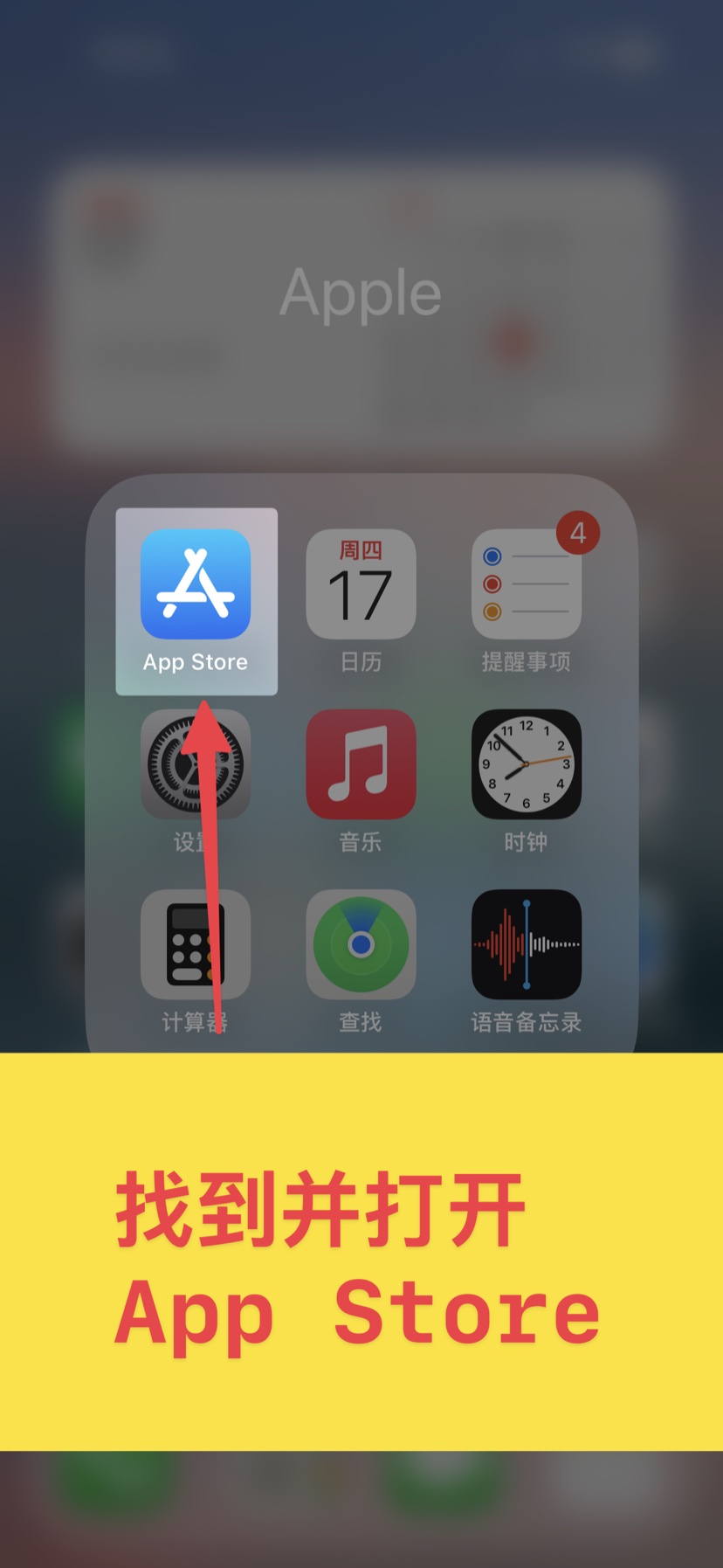 Screenshot coming soon
Tap your avatar in the top right
On the App Store home screen, tap the avatar in the top right to open the account panel.
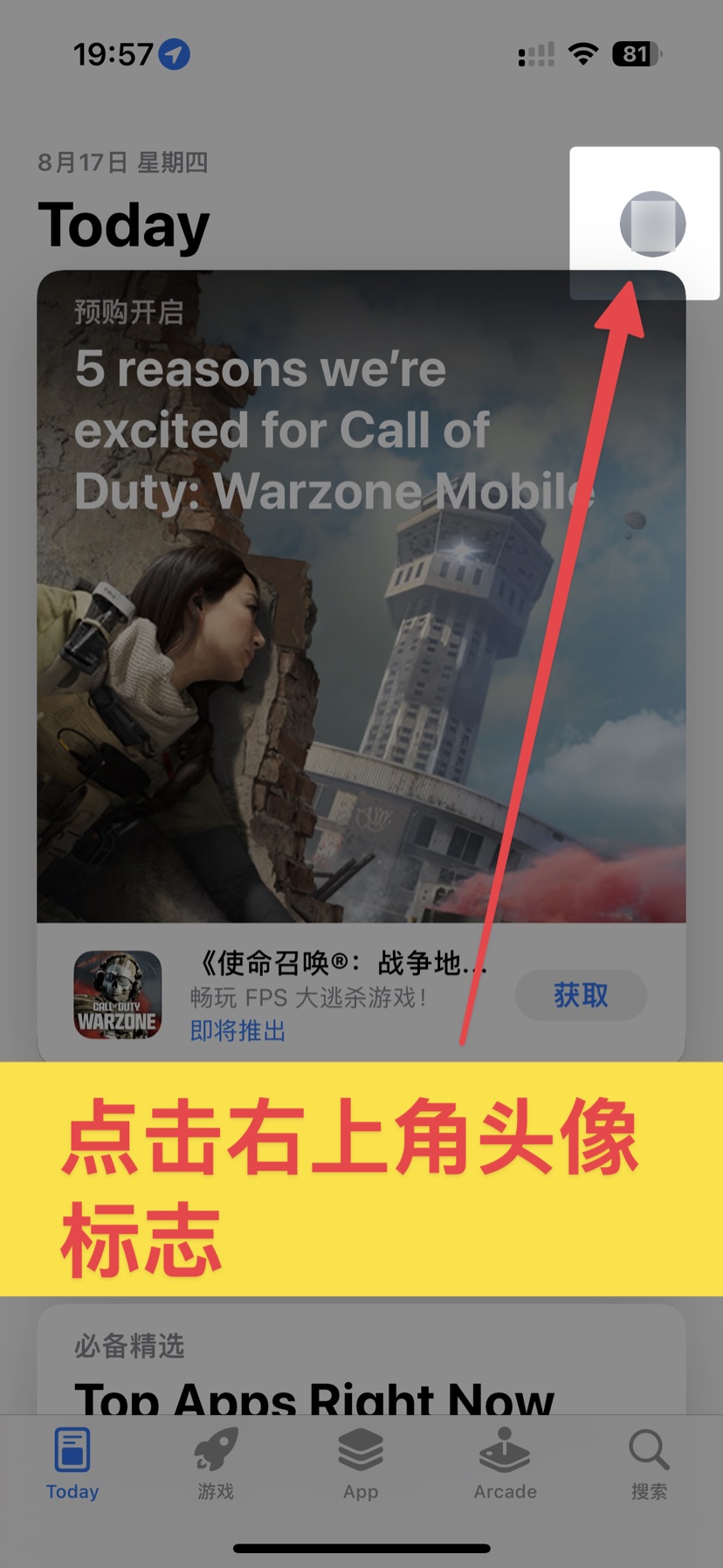 Screenshot coming soon
Which screen are you seeing?
iOS 26 moved the Sign Out button. Pick the one you see on your phone.
Picked wrong? If the next screen doesn't match, tap Back and choose the other one.
Tap your account card at the top
Tap the card at the top saying “Account info, payment and settings” to open Account Settings.
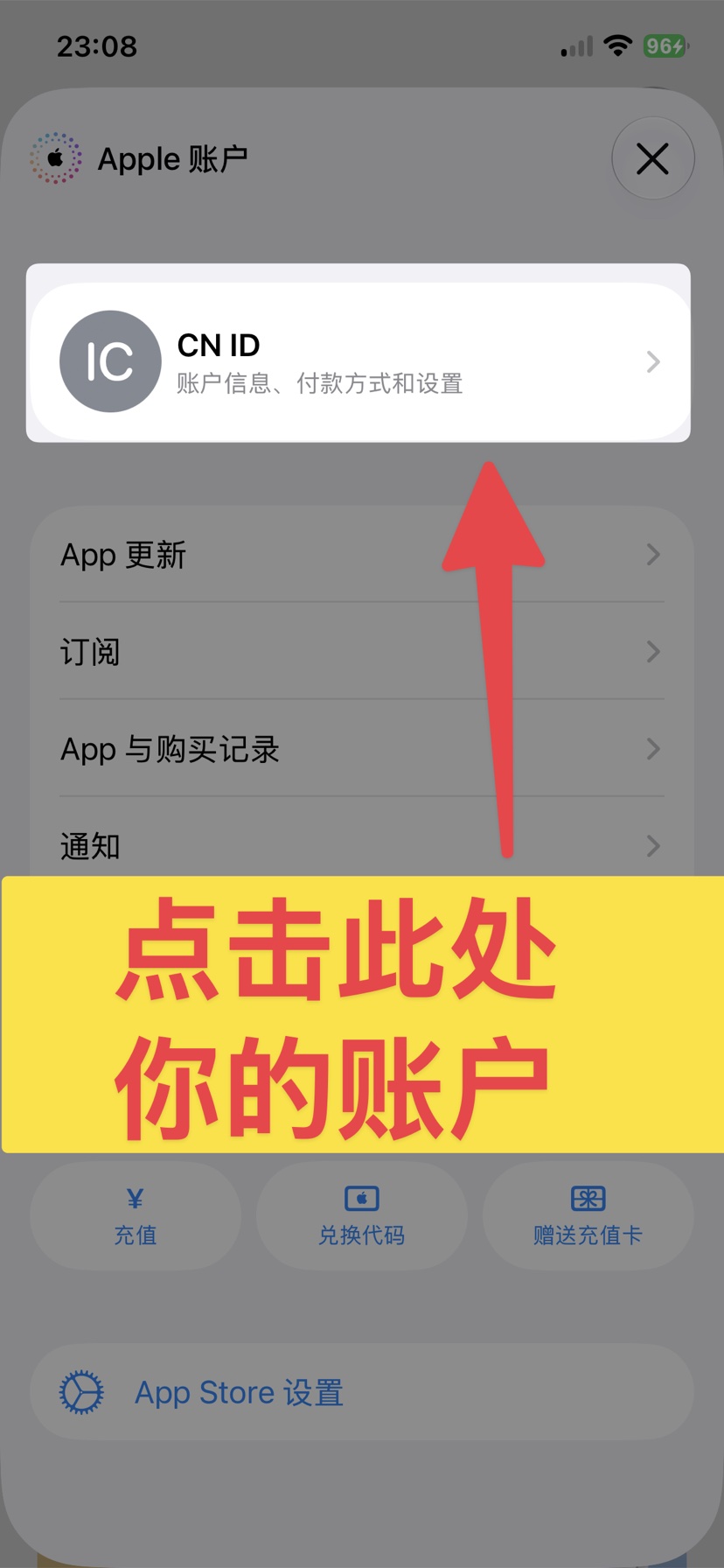 Screenshot coming soon
Scroll to the bottom and tap Sign Out
In Account Settings, scroll all the way down and tap the red “Sign Out”.
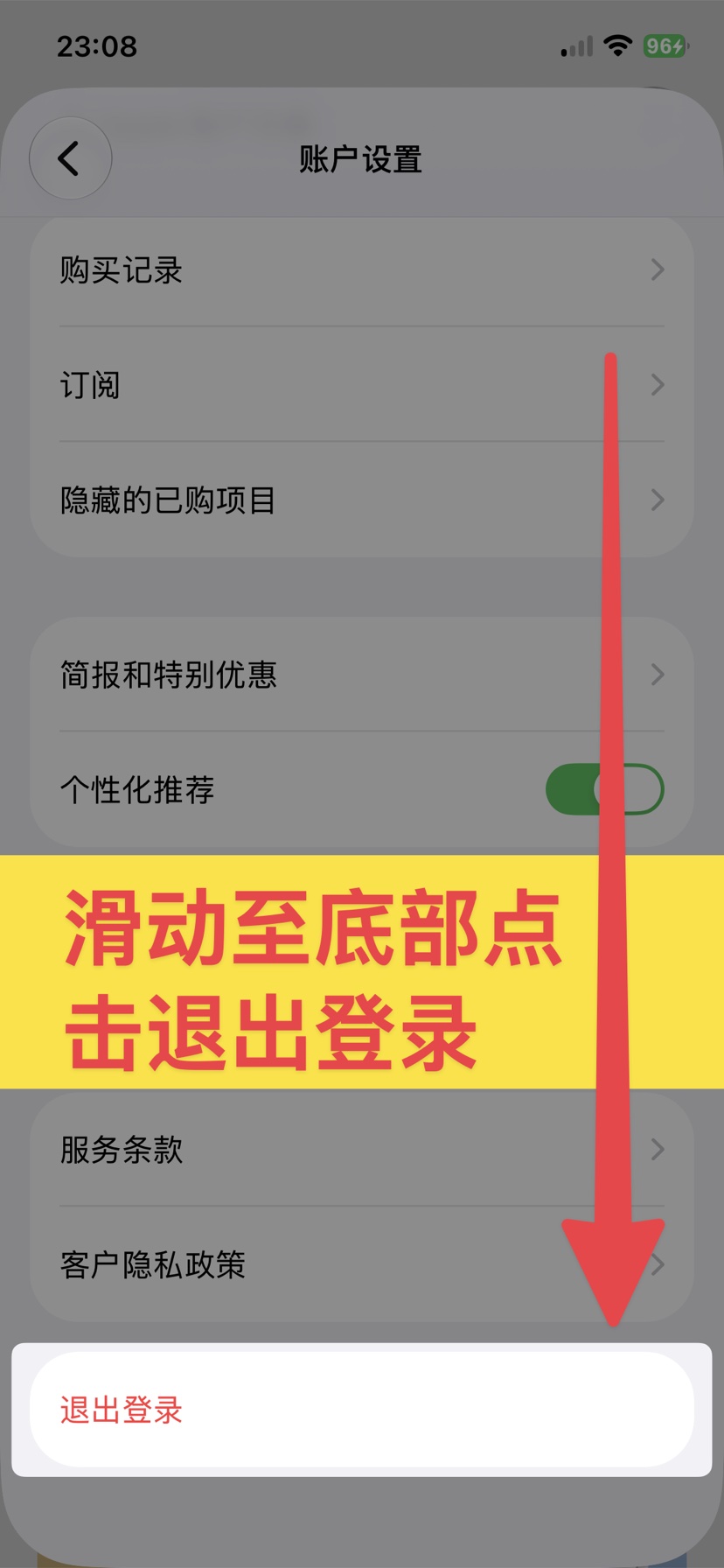 Screenshot coming soon
This only signs you out of the App Store — your iCloud and photos are untouched.
Tap “Sign in with Apple Account”
Back on the account panel, tap “Sign in with Apple Account” at the top.
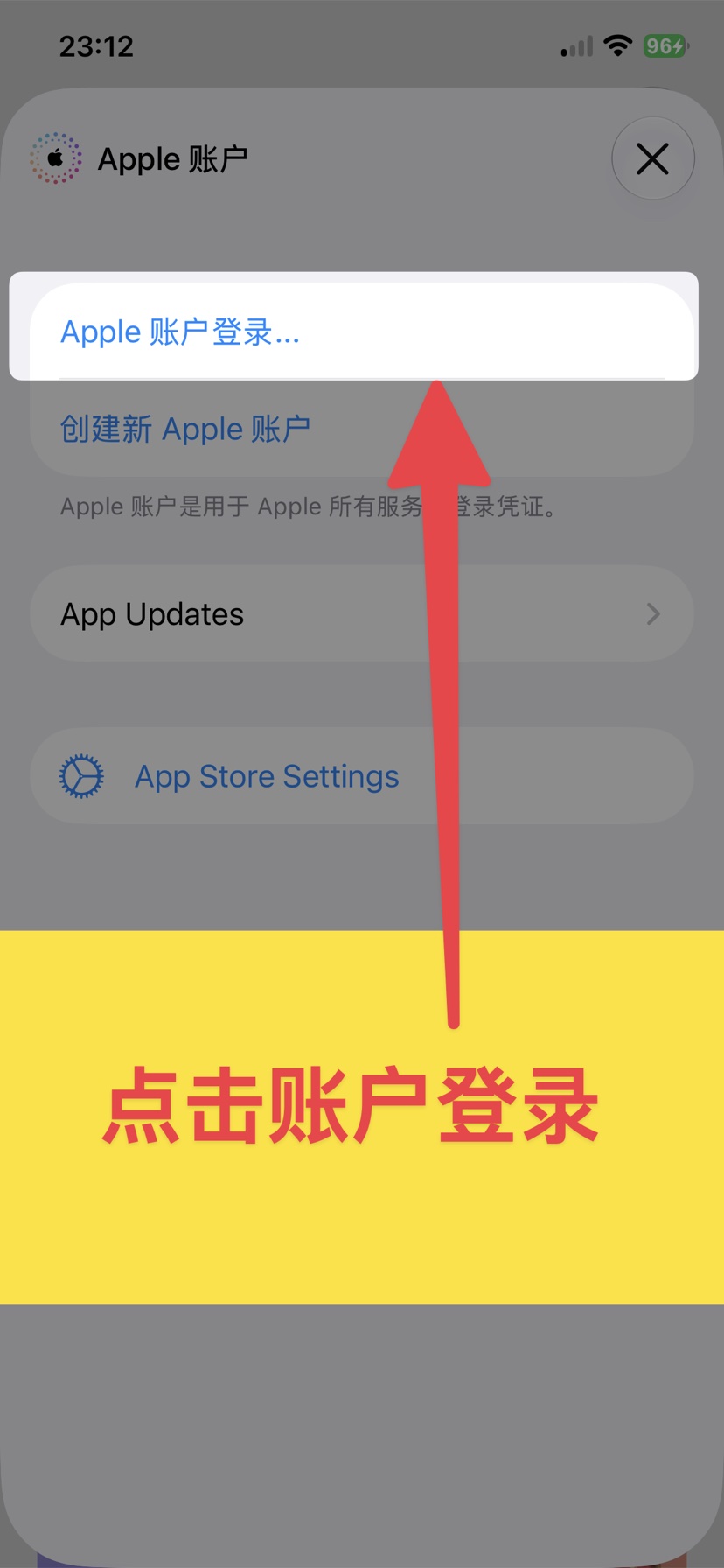 Screenshot coming soon
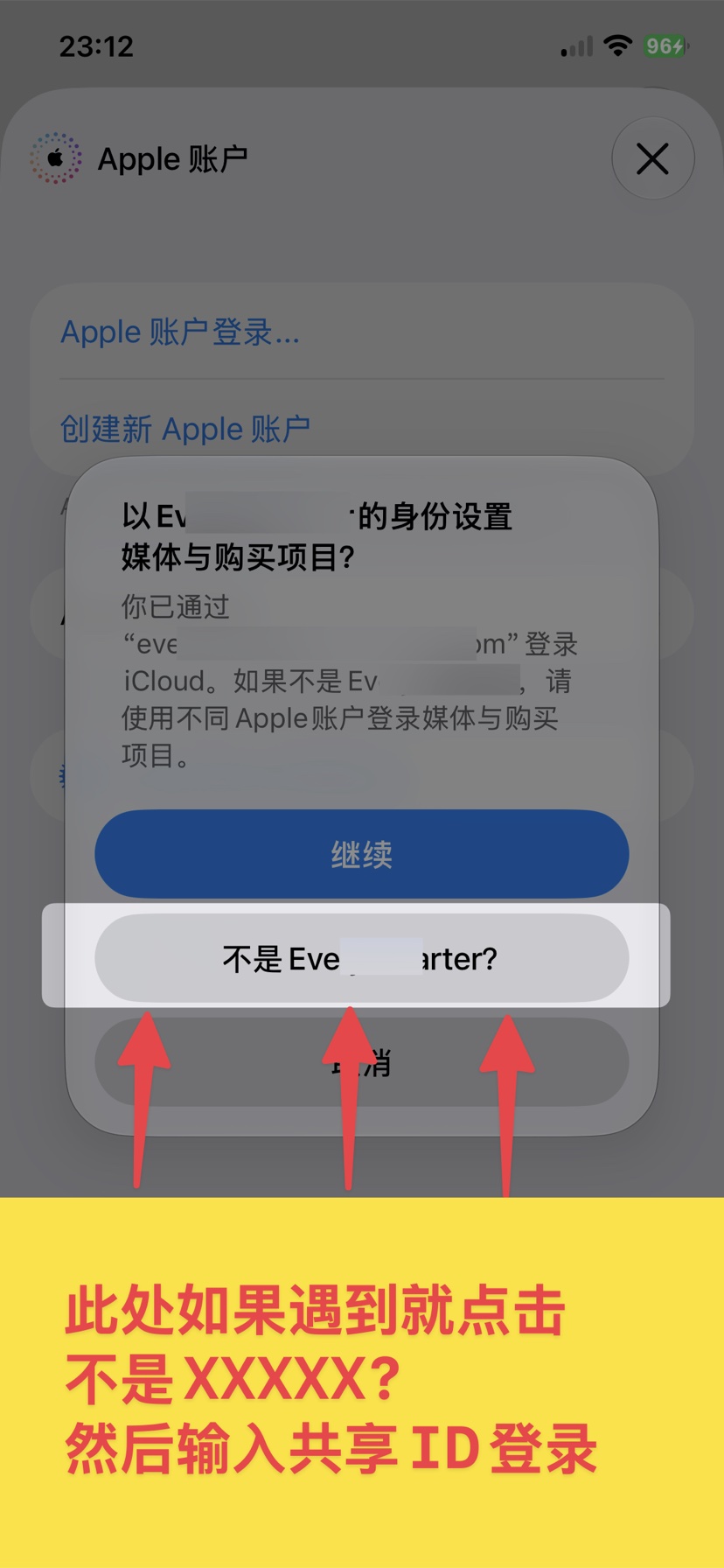 Screenshot coming soon
—Enter this code when you sign up for RenoVPN.Enter the shared ID and password
Copy and paste them in this order. If a dialog asks “Set up media & purchases as XXX?”, you must tap “Not XXX?” before entering anything.
Pick an account (switch if one won't sign in)
——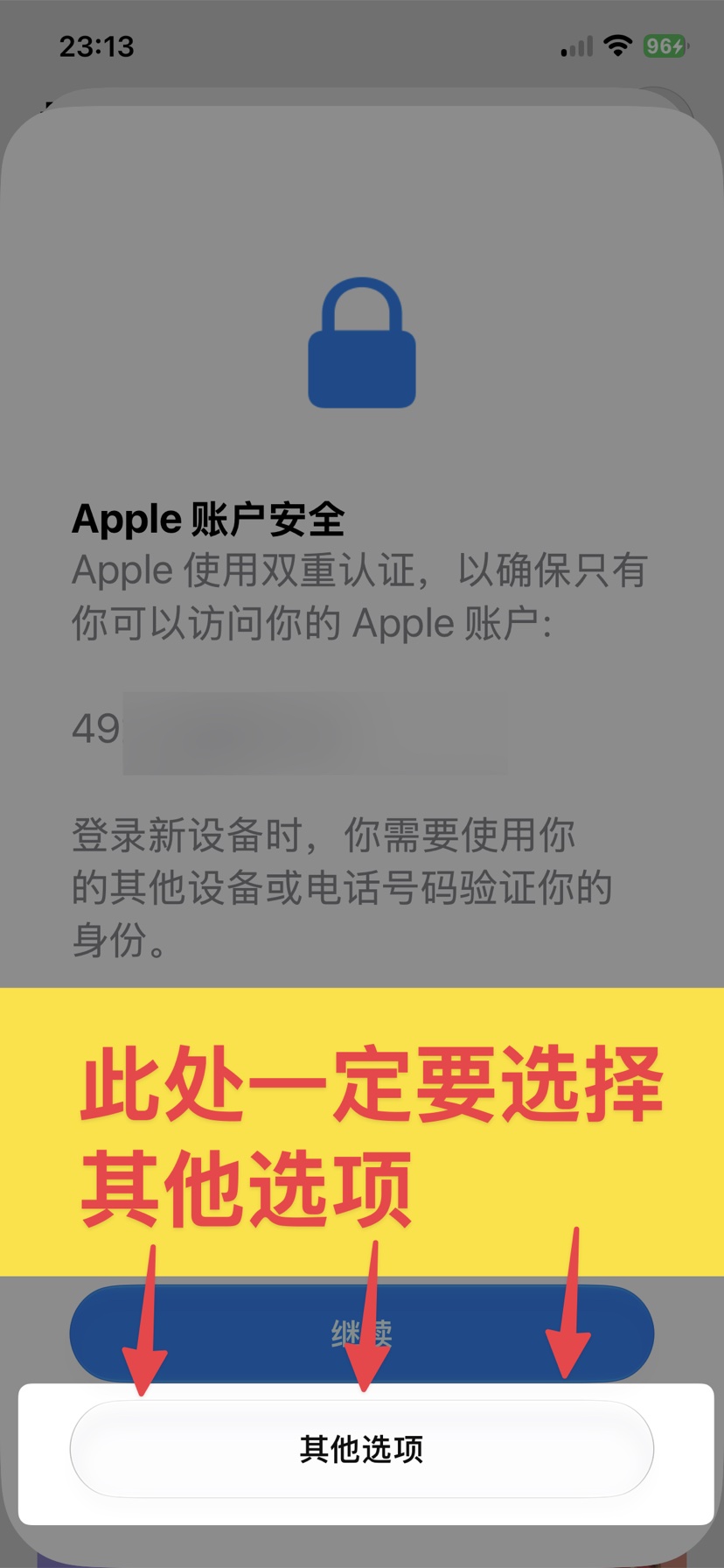 Screenshot coming soon
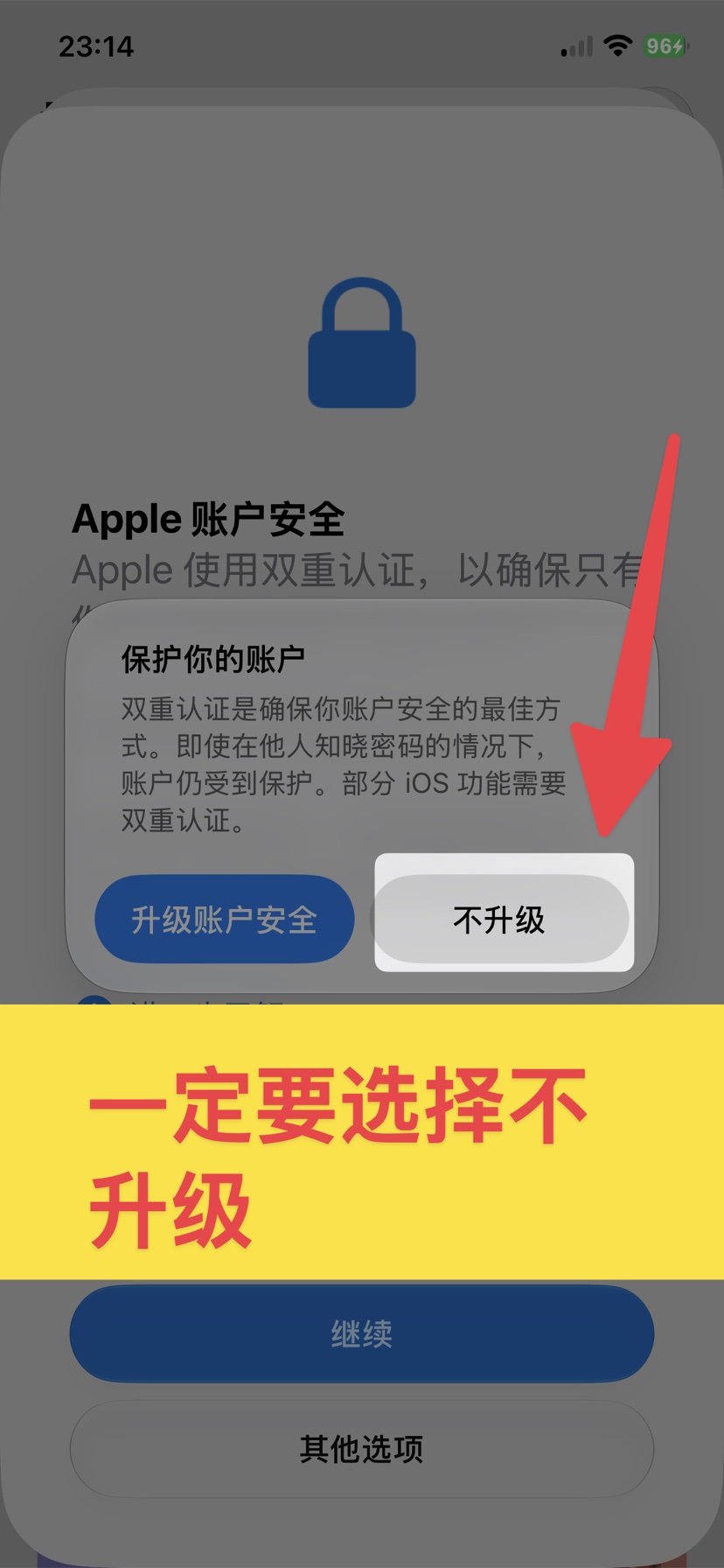 Screenshot coming soon
- 1Paste the ID and password, then tap “Sign In”
- 2If “Apple Account Security” appears, don't tap the blue “Continue” — tap “Other Options” below it
- 3When “Protect Your Account” follows, tap “Don't Upgrade”
Scroll down on the account page
Scroll this page all the way to the bottom.
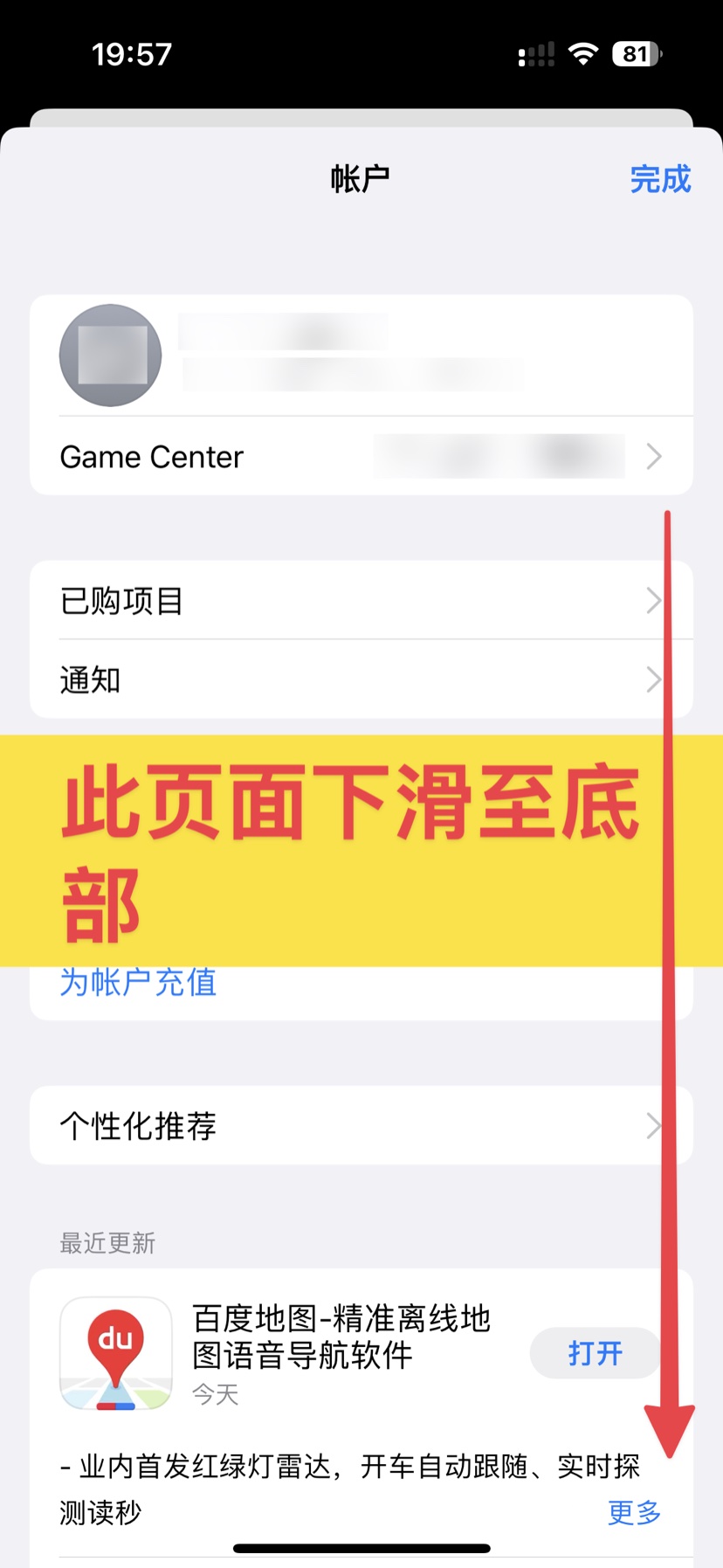 Screenshot coming soon
Tap Sign Out
Tap “Sign Out” at the very bottom.
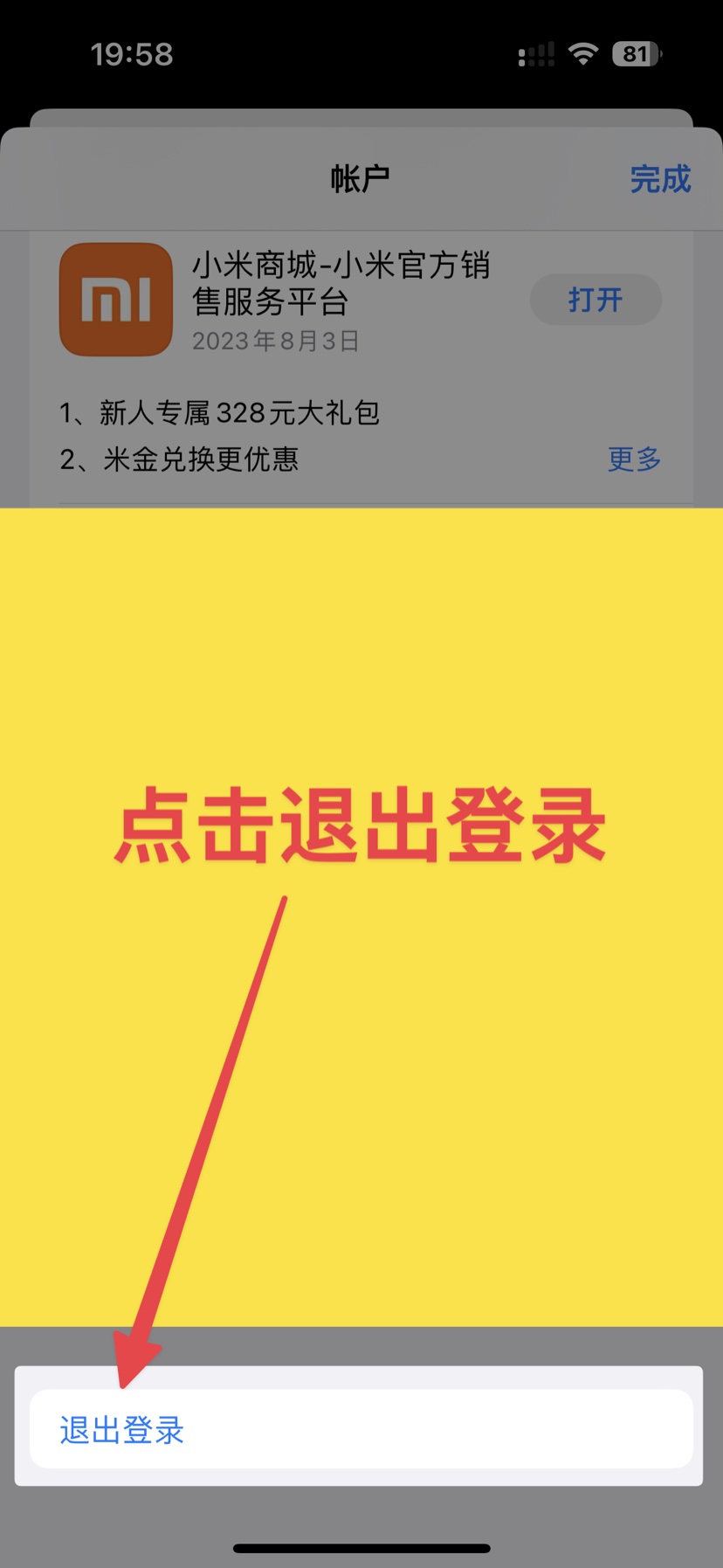 Screenshot coming soon
This only signs you out of the App Store — your iCloud and photos are untouched.
—Enter this code when you sign up for RenoVPN.Scroll to the top and enter the shared ID
After signing out the page returns to the sign-in fields at the top. Copy and paste them in this order, then tap Sign In.
Pick an account (switch if one won't sign in)
——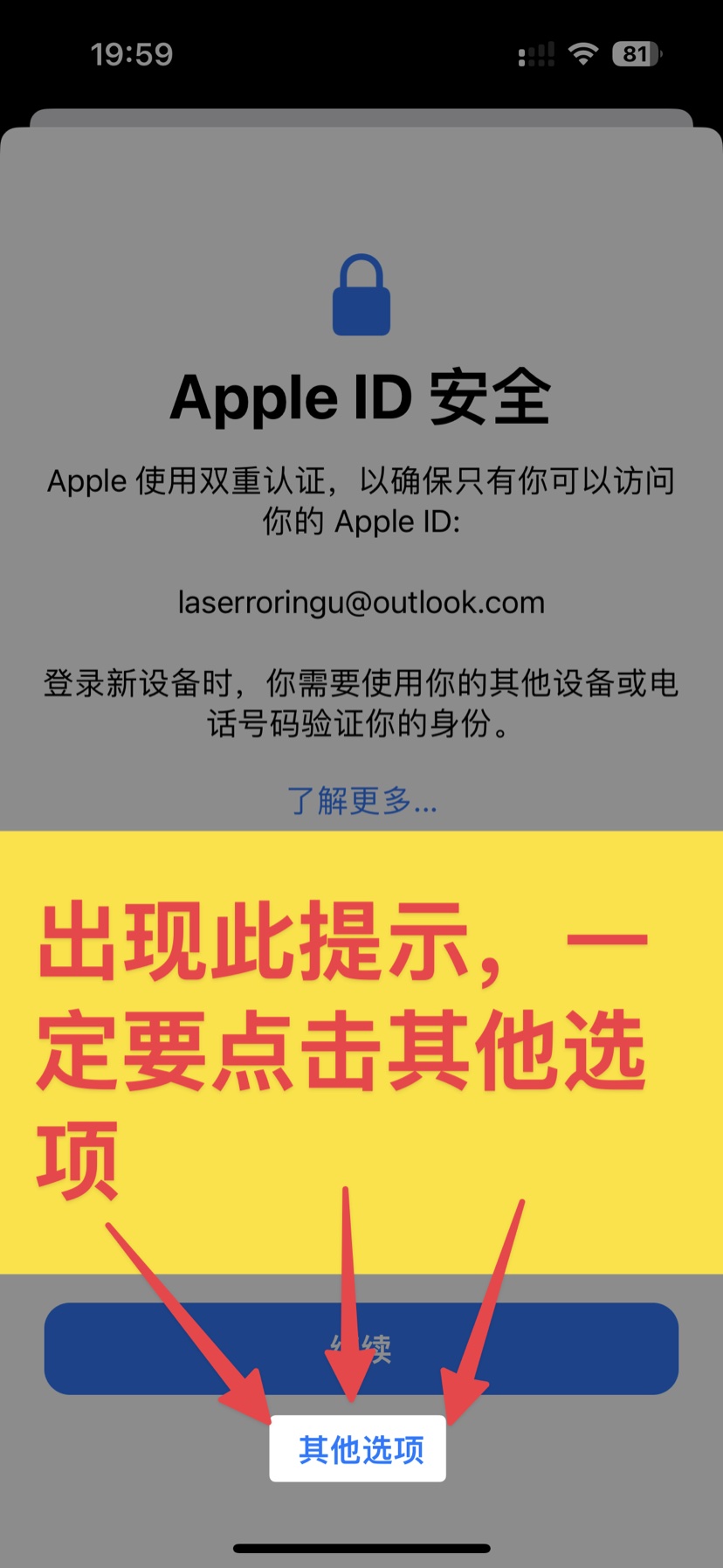 Screenshot coming soon
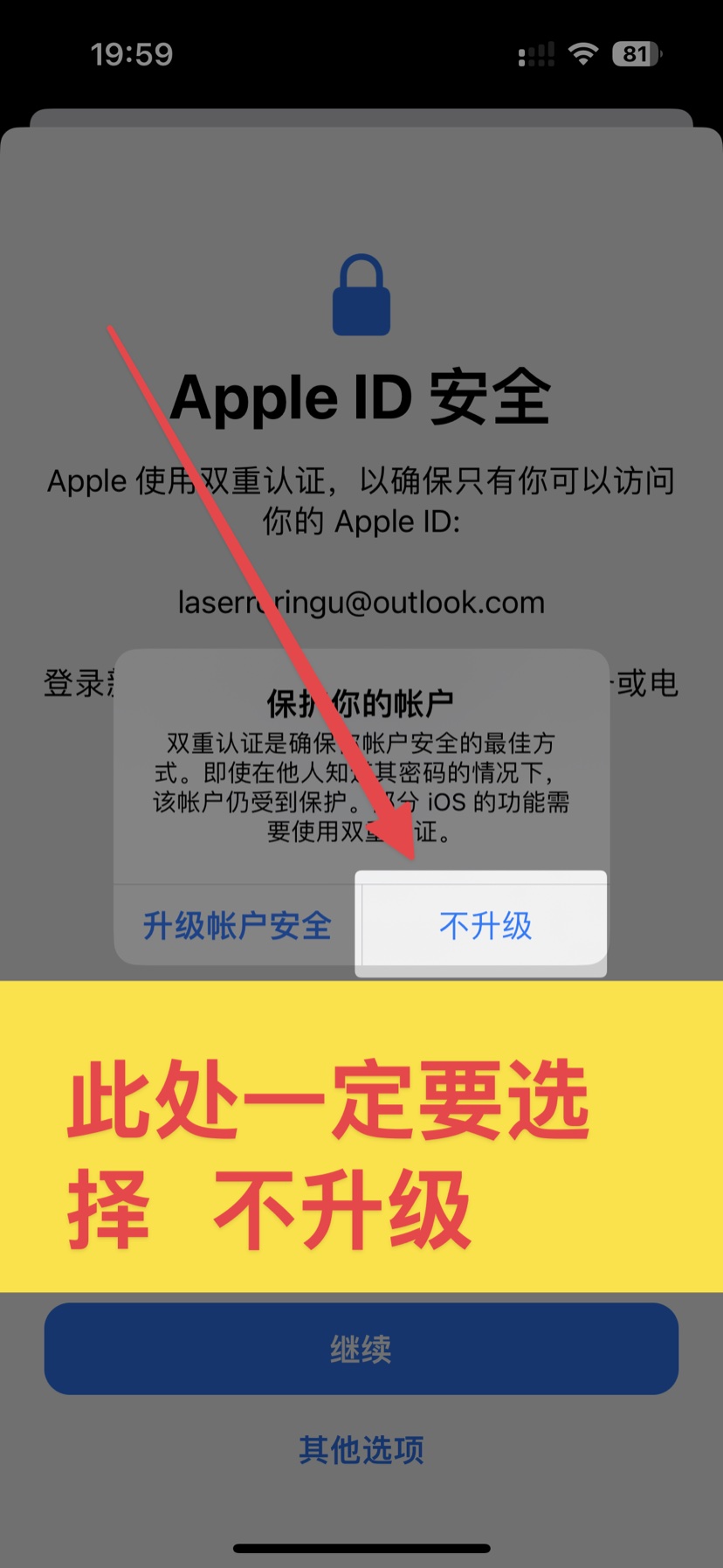 Screenshot coming soon
- 1Paste the ID and password, then tap “Sign In”
- 2If “Apple Account Security” appears, don't tap the blue “Continue” — tap “Other Options” below it
- 3When “Protect Your Account” follows, tap “Don't Upgrade”
—Enter this code when you sign up for RenoVPN.Download RenoVPN
Once signed in, tap the button below to open the App Store page, then tap GET.
Open the App Store pageIf you see “verification required” or “this Apple ID has not been used with the App Store”, that account is unusable. Tap Back until you reach the shared-ID step and try another account.
Sign out of the shared ID and back into your own account now
Do this right after the download finishes: sign out of the shared ID the same way you did before, then sign in with your own Apple ID.
Screenshot coming soonScreenshot coming soonAll set!
—Enter this code when you sign up for RenoVPN.You can open RenoVPN and sign in now.
What if the app asks me to update later?
iOS ties app updates to the Apple ID that originally downloaded the app, so your own account cannot update it. To update, delete RenoVPN first, then follow this guide again to sign into the shared ID and download the latest version (once installed, sign in with your own RenoVPN account). We'll let you know inside the app when a new version is out.
It says “this Apple ID has not been used with the App Store”?
That account is temporarily unusable. Go back to the shared-ID step and pick another one; contact support only if none of them work.
It says the account is locked or needs security verification?
Don't try to reset the password or verify a phone number — just switch to another account. Contact support only if none of them work.
Read this first
Use the shared ID only for the Apple TV “Store / App Store account” to download. Do not sign it into iCloud or the main profile, do not change its password, and do not buy anything with it.
Updating? Read this first
If the app is already on your Apple TV, it was most likely downloaded with a different account, and the shared ID can't update it directly. First delete it from the Home screen (highlight the icon, press and hold the clickpad/Select, then choose Delete), then follow the steps below to reinstall with the shared ID.
Don't worry — your plan and data live in your account, so just sign in after reinstalling and nothing is lost.
Open “Settings” on the Apple TV home screen
Use the remote to find and open the Settings app.
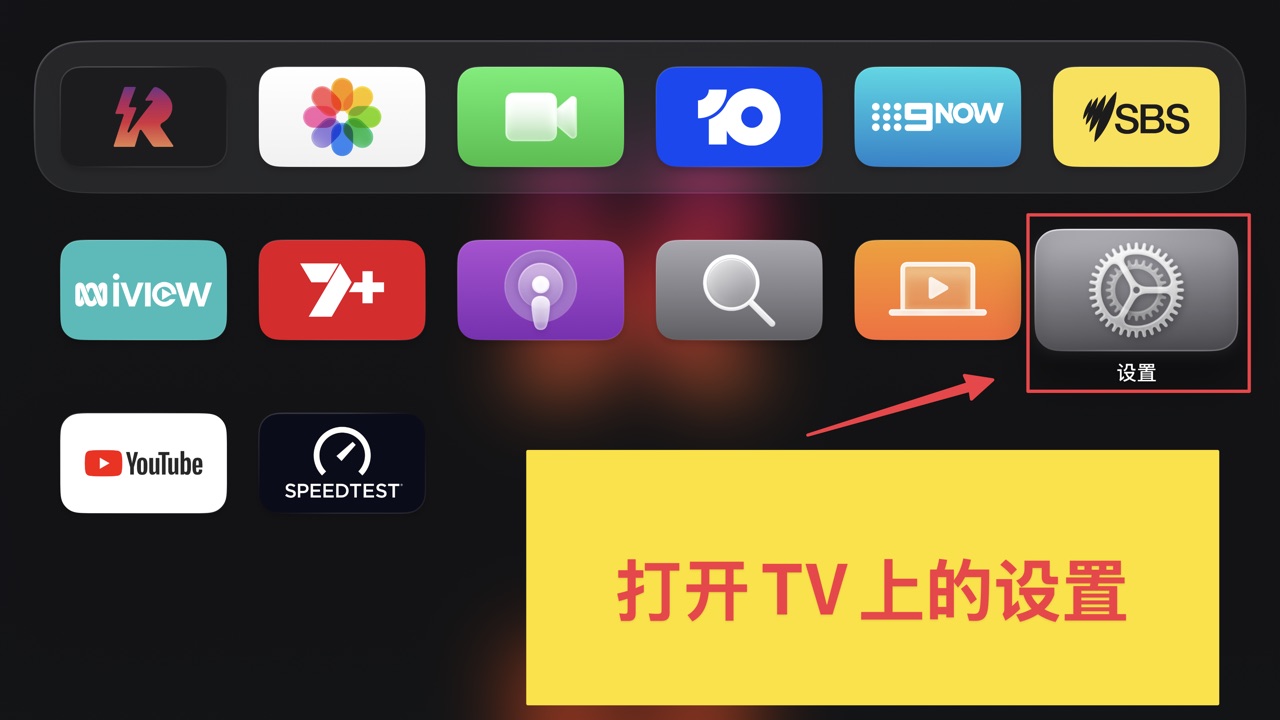 Screenshot coming soon
Go to “Users and Accounts”
In Settings, select “Users and Accounts”.
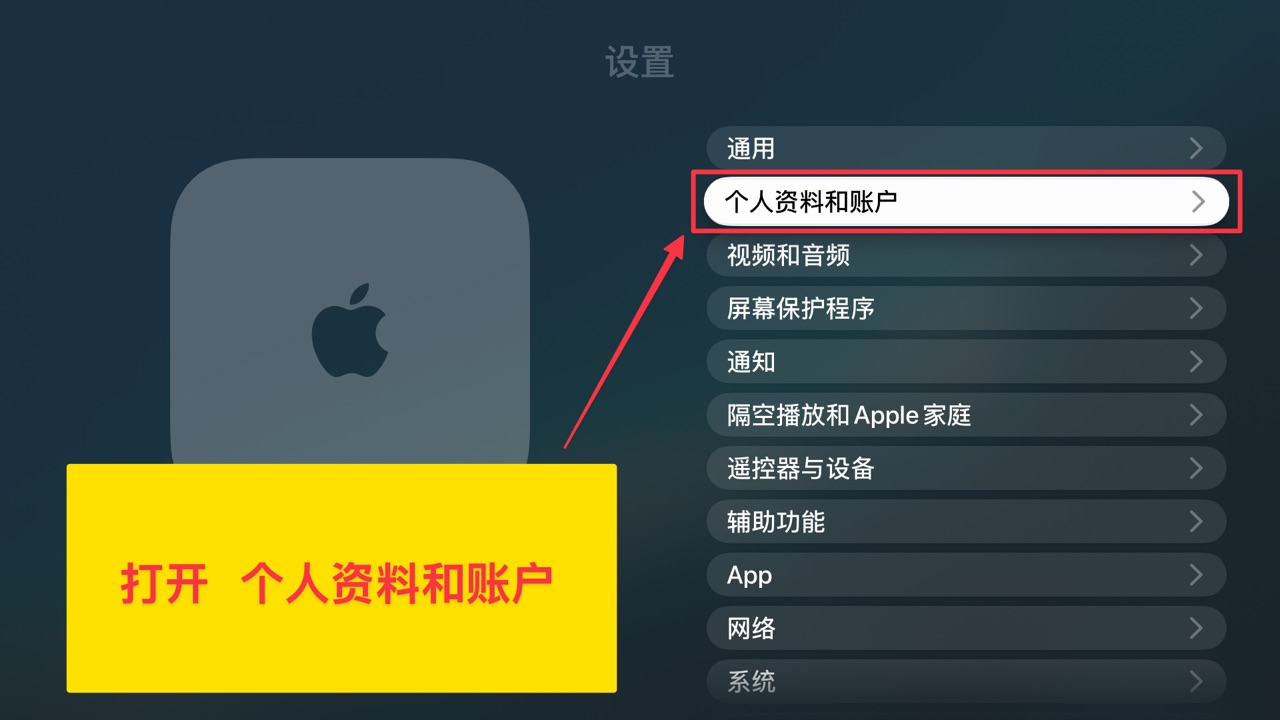 Screenshot coming soon
Open your default profile
Open your own profile under “Default” to see its account details.
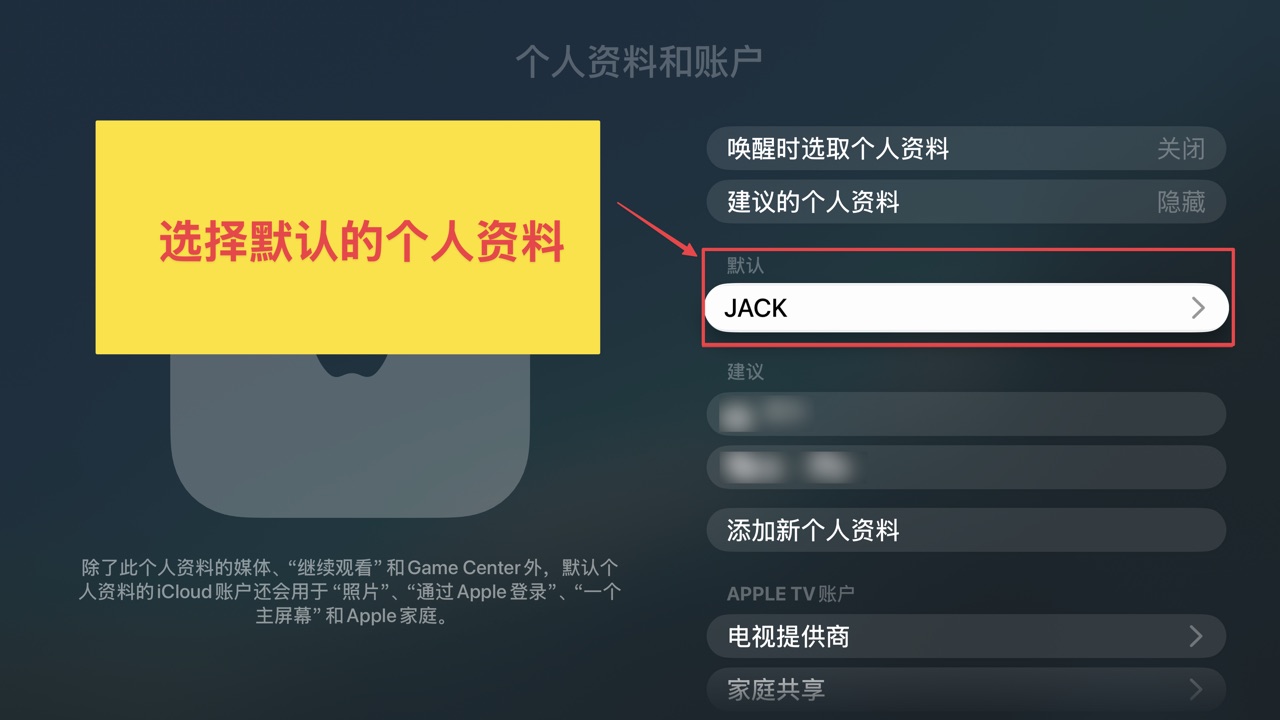 Screenshot coming soon
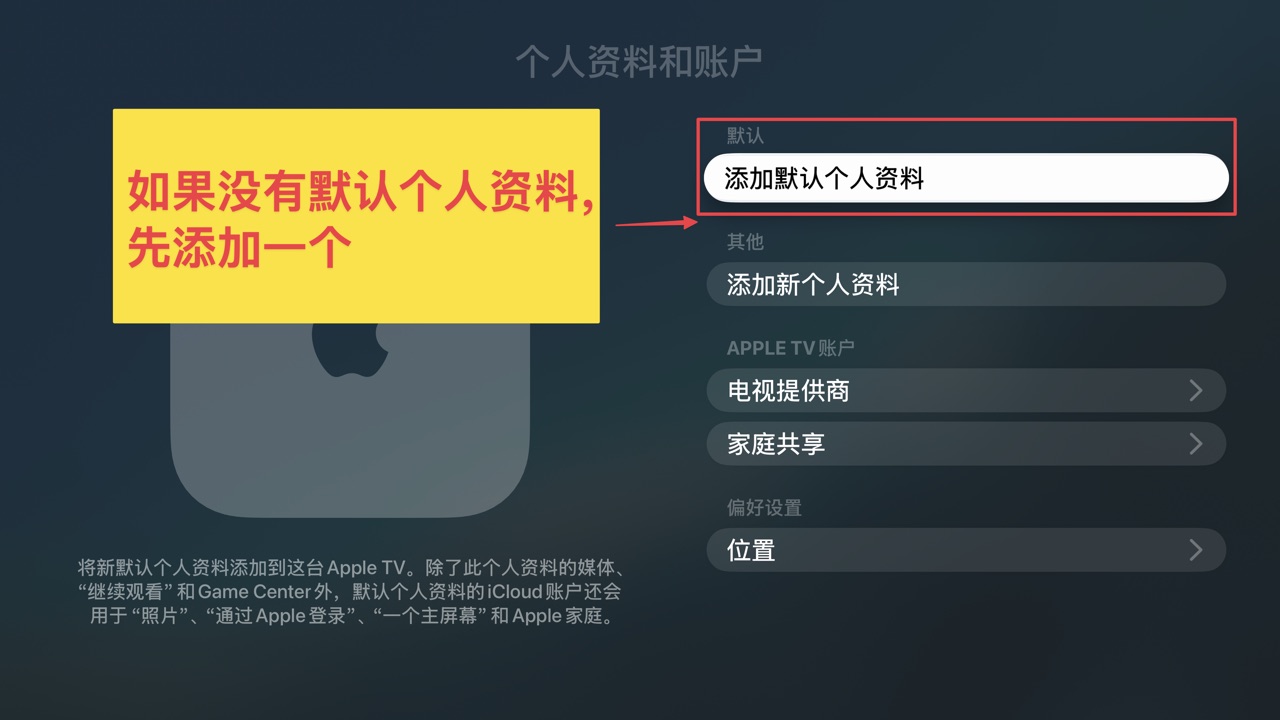 Screenshot coming soon
Open the “Store” account
Under “Apple Account”, open the “Store” row. It is separate from iCloud above — we only switch this one.
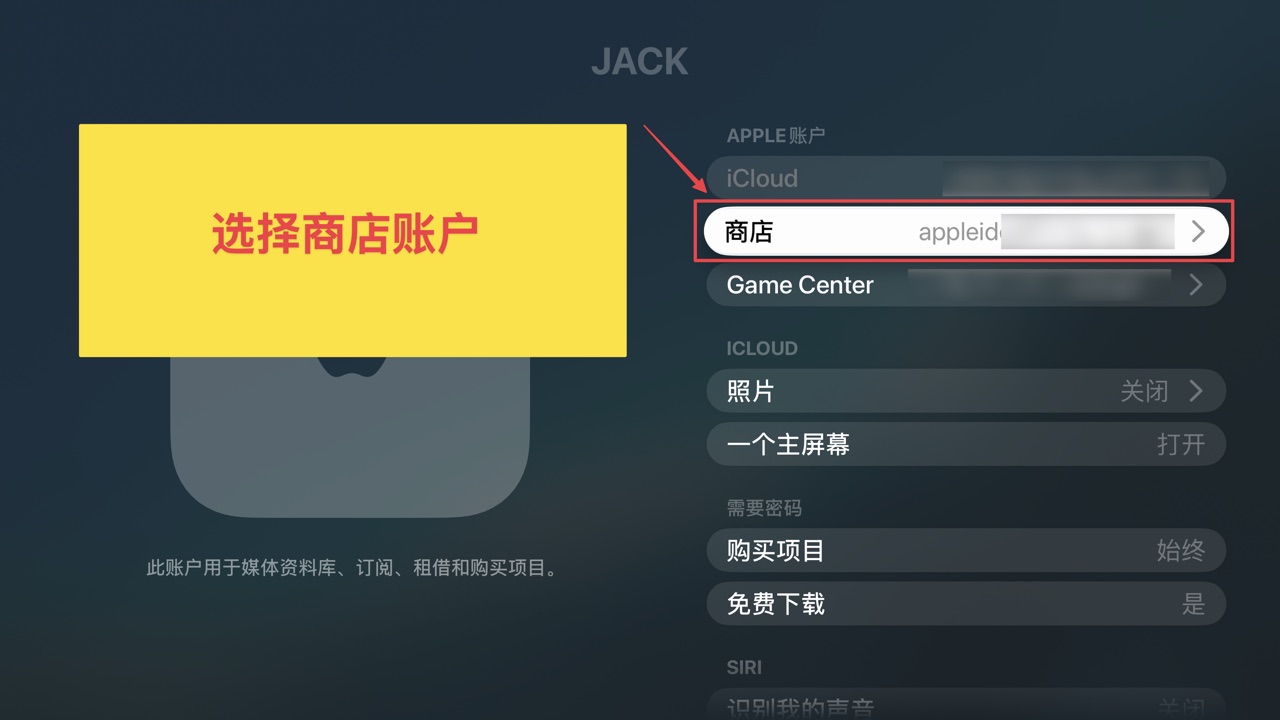 Screenshot coming soon
Sign out the current store account
Choose “Sign Out” to sign out the current store account.
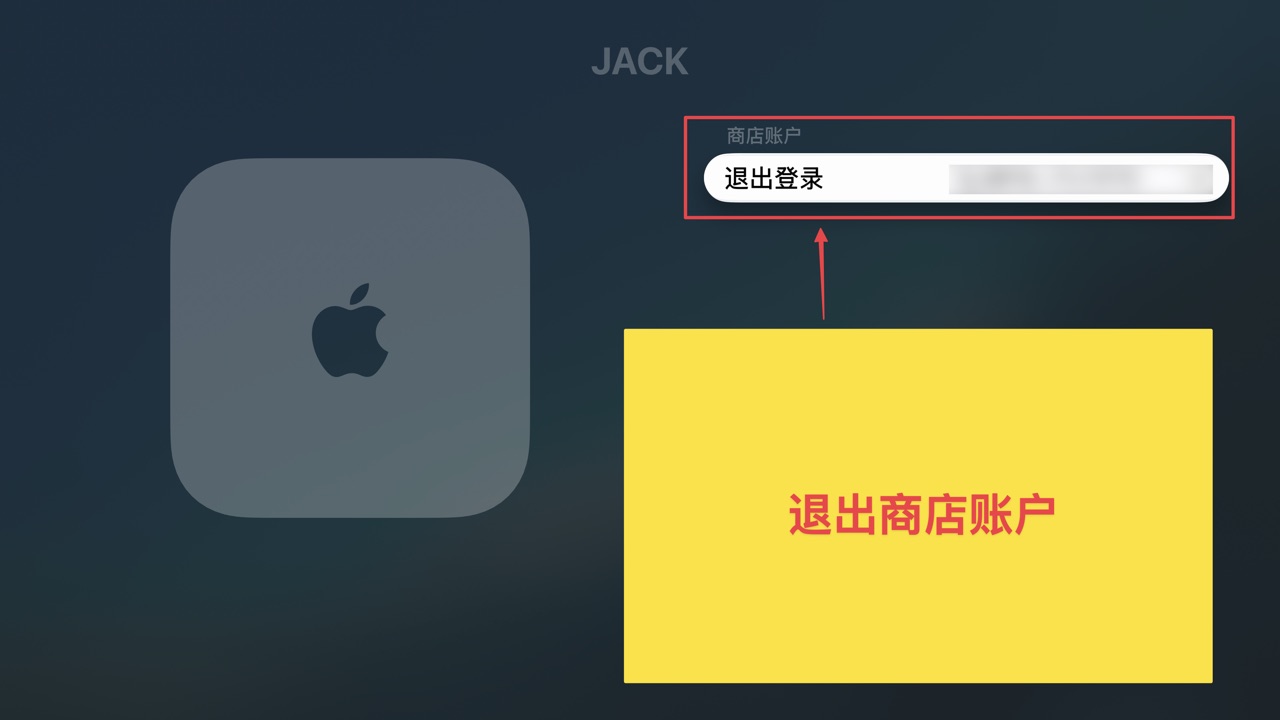 Screenshot coming soon
This does not affect your iCloud — it only clears the account used for the store and downloads.
Sign in the shared ID
You will see two buttons — use either one to sign in the shared ID below:
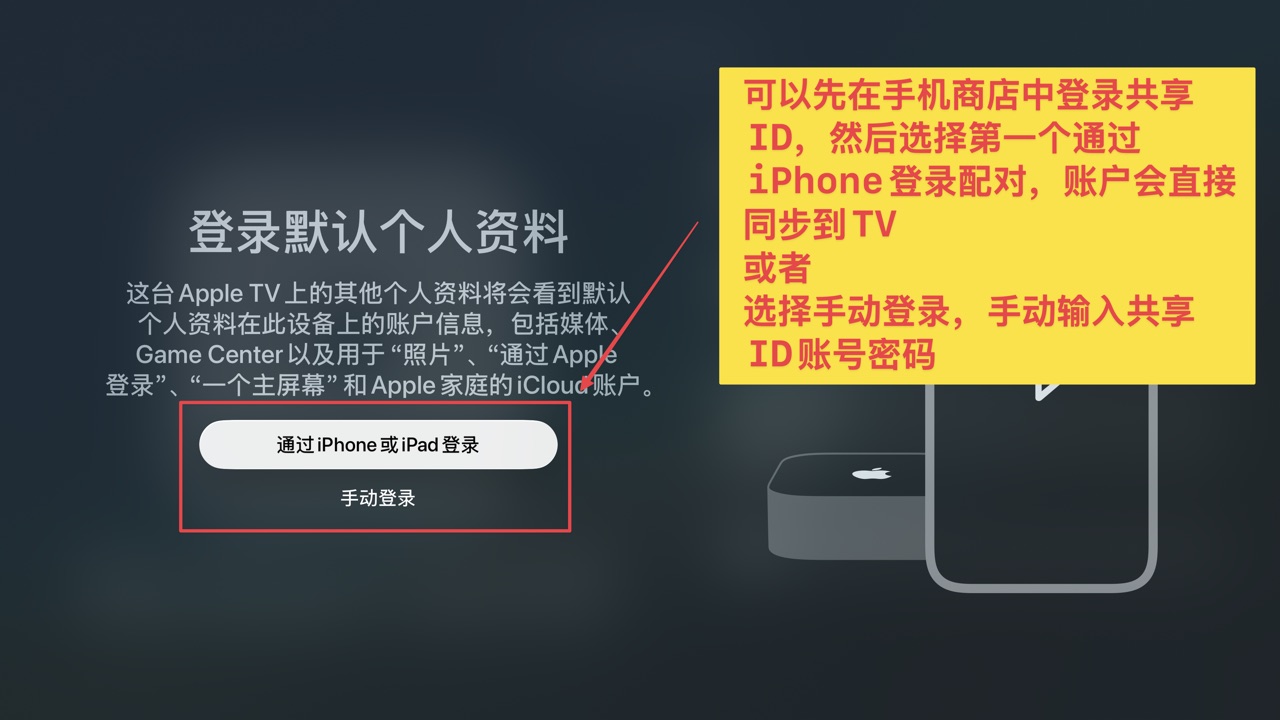 Screenshot coming soon
Shared ID (switch if one won't sign in):
Pick an account (switch if one won't sign in)
——Done!
Once signed in, search for RenoVPN in the Apple TV App Store and install it. Open the app and pair it by scanning the code from your phone to get started.
How do I update the app later?
App updates on Apple TV are tied to the account that first downloaded it. When an update is needed, sign the shared ID back into the store account the same way, then update from the App Store.
Should I sign out the shared ID afterward?
After downloading or updating, you can sign the shared store account out and switch back to your own the same way — it won't affect the app you already installed.